Download procedure
From the Download section of the side menu, the user can access the corresponding features.
The Download page shares interface and behavior with the analysis launch page; therefore the standard method to download files from the platform requires using a collection of codes already present in the cart or in an active tag. The choice between tag or cart occurs before proceeding and is necessary to specify the samples associated with the files to download.
The download system allows the user to:
- add samples to the cart or activate a tag via shortcuts;
- use the Quick selection function
 to quickly fill the cart using a CSV file or by listing codes in the dedicated field;
- choose between two download categories:
- Single sample download, which allows you to freely choose results of all analyses run with any tool;
- Preset download, which provides shortcuts for quick download of specific analysis results;
- filter the files to download.
The following video provides a brief guide to performing a download:
Analysis results can be downloaded only if previously imported.
Similarly to launching an analysis, the cart is activated to proceed with the download; Quick selection and Load RIS_CD features are also available.
Quick selection allows you to quickly populate the cart with samples of interest. Load RIS_CD allows you to use the unique code of one or more analyses, giving an easy access to results of older analyses.
Additional information on using RIS_CD to launch analyses and for download functions is available in the guide section "RIS_CD export".
Launching analyses generates a link to the process card of the requested analysis and, in some cases, from that card it is possible to access some files and visualization or download options. For more information on the workflow, you can consult the following Wiki pages:
Preset
Procedures for "Single sample" and "Preset" downloads are identical. Preset downloads are shortcuts that:
- allow you to avoid specifying all required parameters;
- are available only for a selection of combinations (the most used) among the possible analyses.
The Preset feature is designed to facilitate the workflow for users who routinely download specific files: parameters are pre-set, which allows you to move faster and with fewer clicks through the interfaces.
View downloads
In the View downloads section of the side menu you can consult the cards of launched download processes.
The View Downloads page keeps the history of the user's downloads. Each element (card) contains useful information about the performed process, including identifiers, links and a wget command to repeat the download.
As with the elements in other platform tables, each card is expandable and contains additional details.
Notes for the user
Both Preset download features and the selection of files to download are intended to evolve according to user needs. If there is a need to add a Preset download or a filter on the files to download for an analysis, users can request it from the Bioinformatics department.
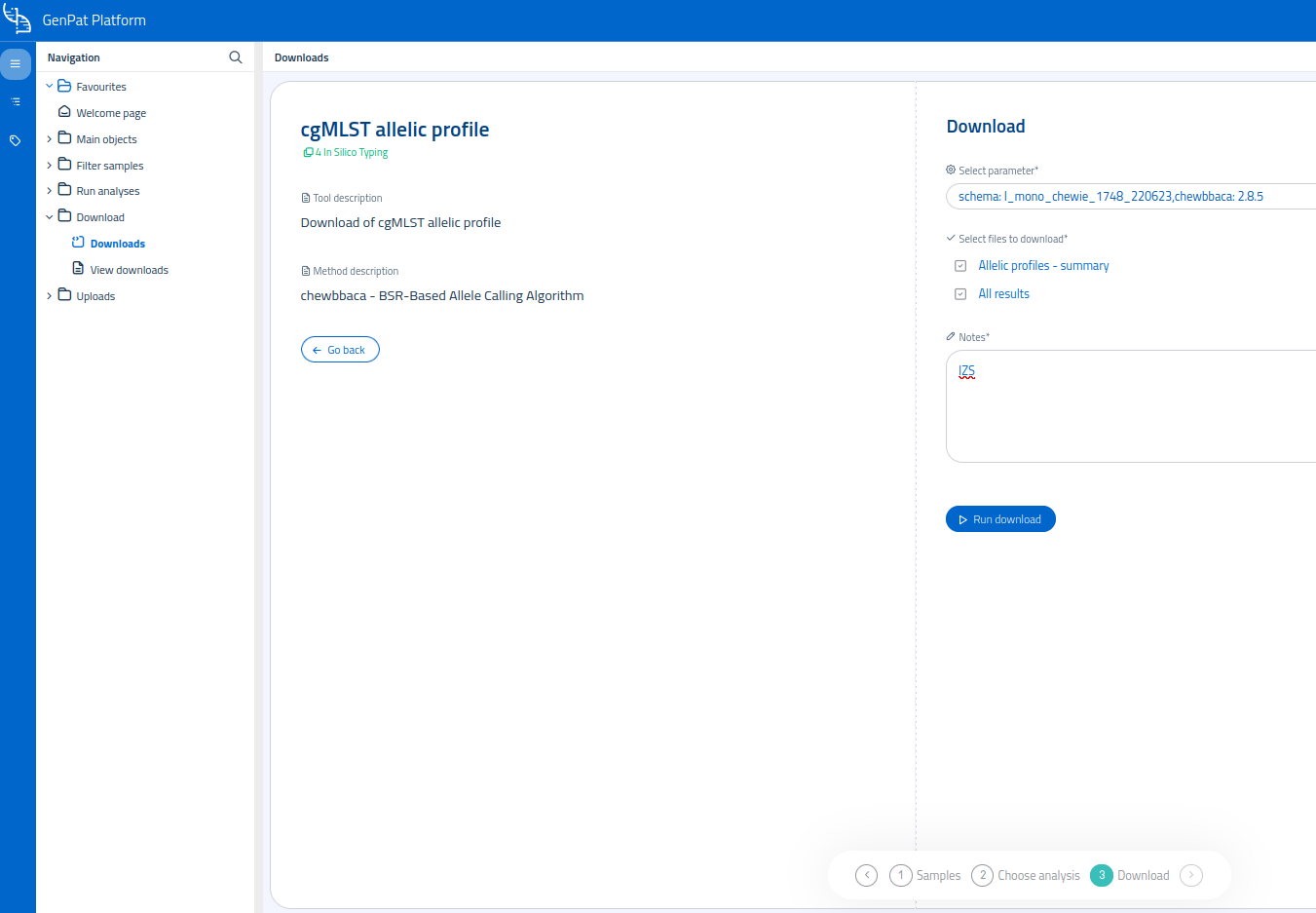
Note for users with IZS profile: only for users with an "IZS" profile (e.g. "IZS Listeria"), the last phase for launching the download of allelic profiles and de novo assemblies will display a "Note" field, as shown in the image below. The download button will be disabled and such users will have to write a short note to communicate the reason for the download. Once the mandatory note is added, the "Launch download" button will become clickable.
wget for Windows users
This page lists some solutions to overcome the inability, for Windows users, to natively run the wget command generated by the platform to download all files.
Method 1: wget.exe
The method below consists of a workaround to execute the UNIX wget command, to download all files of an analysis in a single action.
-
Download the "wget.exe" program for Windows from the link https://eternallybored.org/misc/wget/1.21.4/64/wget.exe;
-
Save (or move) the downloaded wget.exe file to your "Download" folder;
-
Open the Windows command line (cmd, available in the Start menu) and move to the "Download" folder (type the command below and press "Enter"):
cd Download -
Copy the
wgetcommand generated by the platform download page into the Command Prompt and run it; -
At the end of the download procedure, the files will be located in a folder with the name provided by the launched command (e.g. "f0086d8f-948d-4753-ad85-5171f1a5dda8"), located in the "Download" folder.
Method 2: Browser extension "DownThemAll"
The web browser extension "DownThemAll!" can be added to Firefox, Chrome and Edge and allows downloading multiple files from a web page.
-
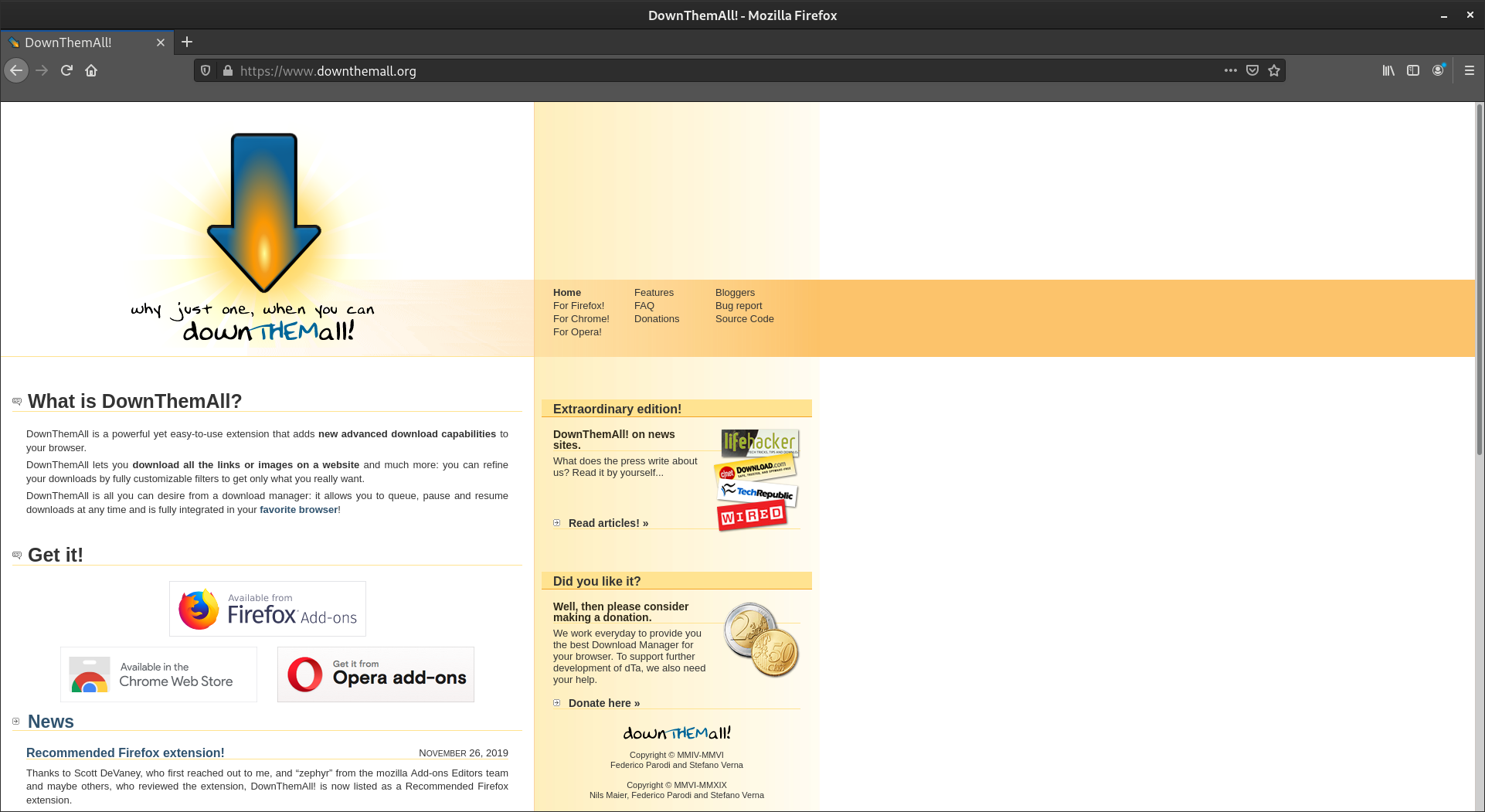
"DownThemAll!" is available at: https://www.downthemall.org/;
-
In the "Get it!" section you can choose the version for your browser and install it:
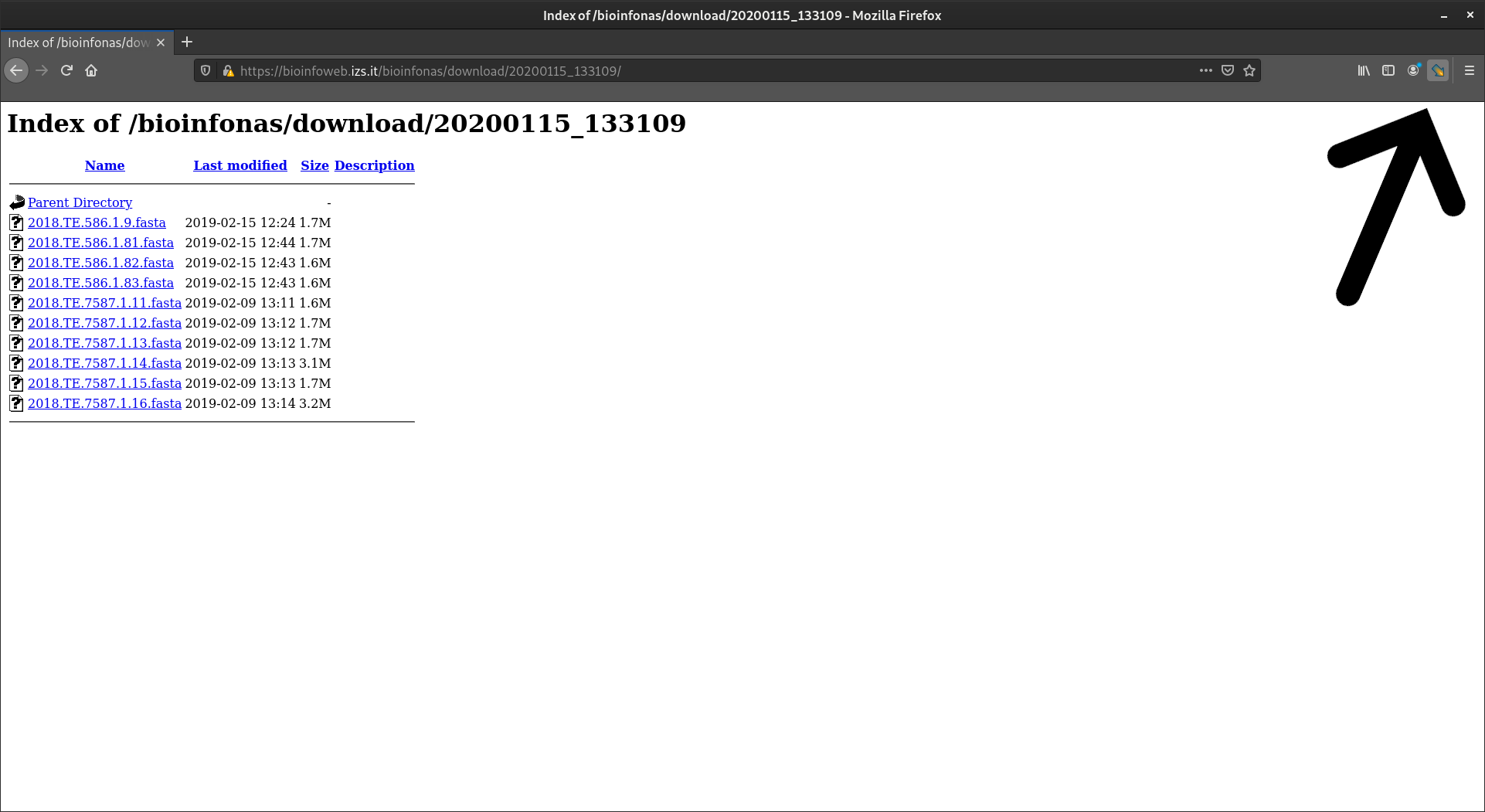
- Once the extension is installed, when you browse a results folder you will be able to download the files listed on the page using the "DownloadThemAll!" function (reachable by clicking the software icon, usually at the top right of the browser toolbar):
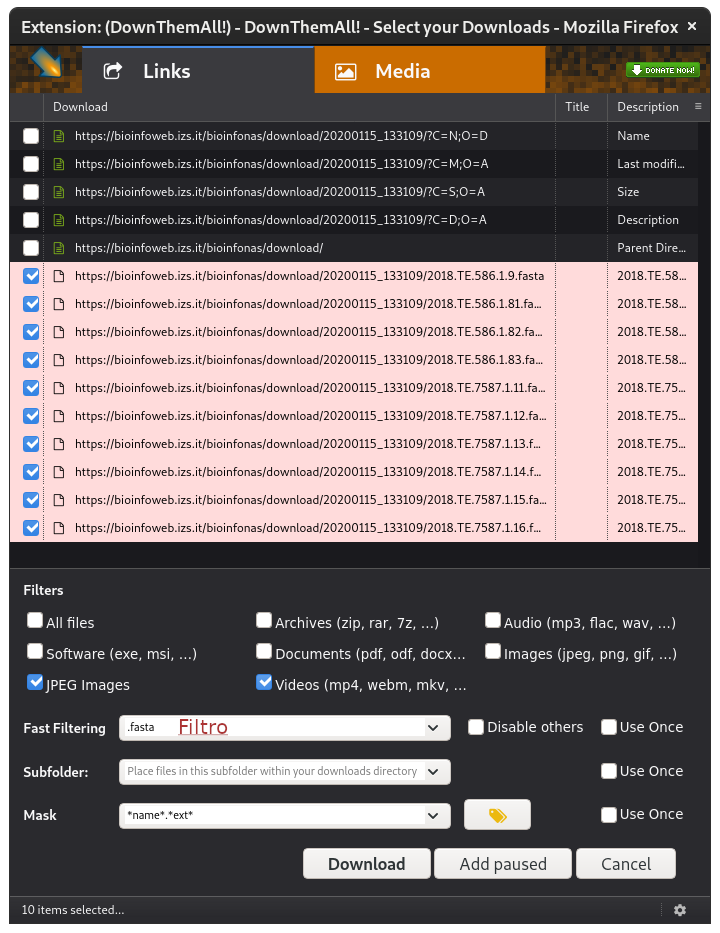
- The window that opens allows you to filter or select files before downloading them via the corresponding button: