
FAQ
This page lists frequently asked questions (FAQ) regarding the use of the platform and their corresponding answers. Before contacting support, please check whether your issue can be solved by reading one of the answers on this page.
Data management
How can I change the character used as a column separator in Excel?
Answer: The column separator can be specified at different levels. Below are guides for the main cases:
- to change the default column separator in Excel, you need to change the character used as a separator in Windows system settings;
- to import into Excel a file with a different separator, you can refer to the various guides available online;
- to split lines in a text file using another character, leveraging Excel built-in features, you can follow this guide: https://it.extendoffice.com/documents/excel/1786-excel-split-text-by-space.html;
- if you want to convert a file, you can use an online tool such as the one available at this link: https://onlinecsvtools.com/change-csv-delimiter.
Note:
.csvfiles created for the platform must use the semicolon (;) as the list separator, whereas the file created for the samplesheet requires a comma (,) as the separator.
I can't export a table as CSV.
Answer: CSV export of a platform table is handled through a popup window. Check whether the browser has opened additional windows and, if not, verify that the browser has not blocked popups from the site. Normally, almost all browsers display a small banner at the top of the page, asking the user how to handle the request to display a pop-up.
Can I change the character used as a column separator for CSV export?
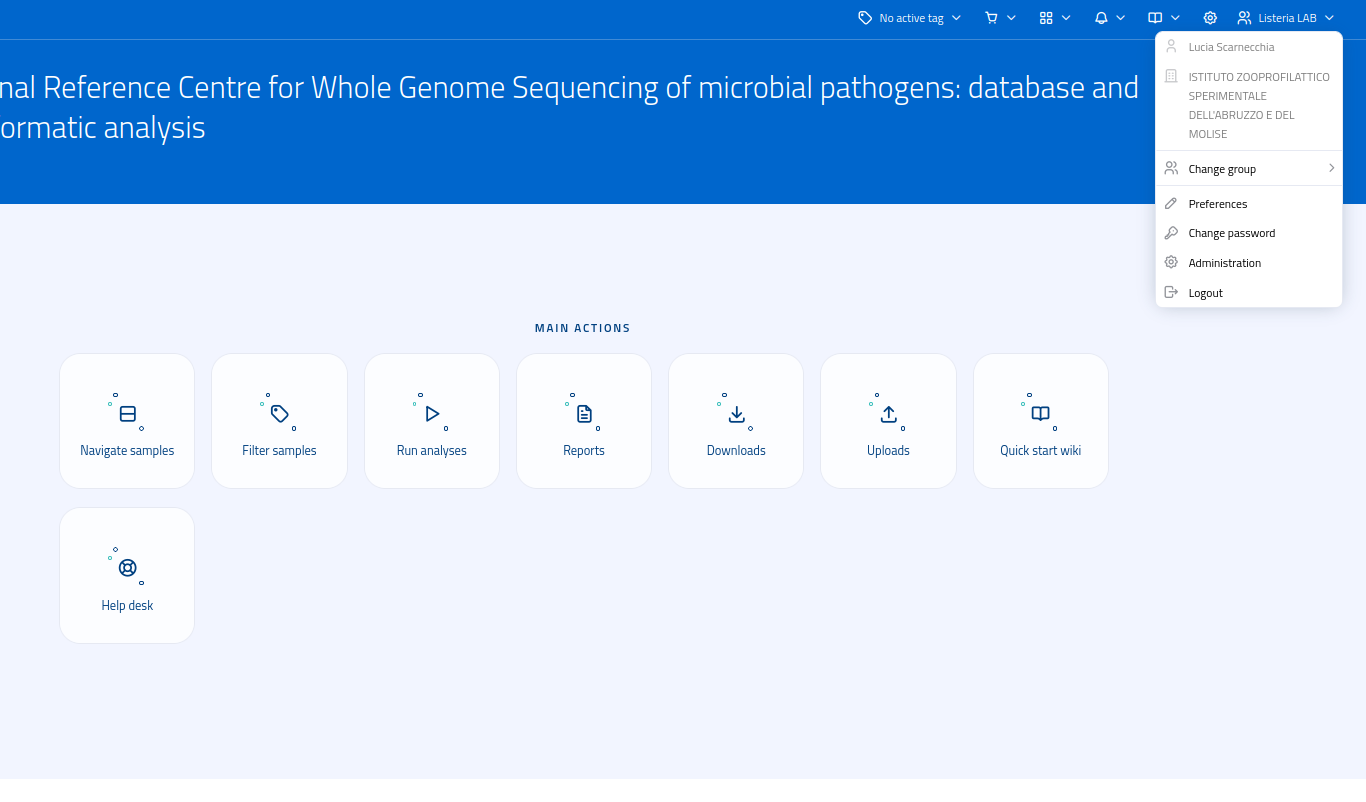
Answer: Yes, in the platform it is possible to change the default column separator, used for CSV export, in the Preferences section of the user menu: once in Preferences, you can change the character in the "CSV Separator" field. Once the changes have been saved, from that moment on, when sample lists are exported as CSV files, the selected character will be used as the separator.
Cart and tag
I get an error message when I try to add many samples to the cart.
Answer: The cart can contain a maximum of 2000 samples. If you need to work on a larger number, we suggest to create a tag.
How can I duplicate/clone a tag?
Answer: Activate the tag to duplicate, go to the Navigate samples section (from the dropdown menu next to the cart icon), select the ones you are interested in, add them to the cart and create a new tag from the cart.
Interface
How can I display columns with additional information in a sample table?
Answer: Additional columns, including those containing result information (such as calculated species, quality check, N50, PFGE, percentage of called alleles, etc.), can be displayed as described in the Wiki page "Table features".
Additional information, not directly available in the sample table, can be found in the "Analysis Results" page (from the left navigation menu, Main objects > Results of the analyses).
Data check and visualization
Where can I find a sample checks?
Answer: In the side Navigation menu there are the Check tables: Report > Detail > Main Quality Check and Reports > Detail > Checks/Metrics. Using a filter, (an active cart or a tag), you can filter the rows of the tables to find the sample(s) of interest. The tables of checks are described in the related page "Tables of checks" of this Wiki.
Where can I find information about the raw reads of a sample?
Answer: Raw reads information can be viewed in the "Check Reads" table (Report > Detail > Checks/Metrics > Check of the reads). In addition, as for the analysis results, raw reads can be downloaded via the Download functionality. In this case the button to select is 0sq_rawreads.
Analyses
Why can't GrapeTree calculate the Minimum Spanning Tree?
Answer: Usually, the reason is usually that there are no allelic differences among the analyzed samples: GrapeTree cannot create an MST on a dataset with multiple samples having 0 differences. Another possible cause is the number of samples: GrapeTree can not calculate a tree if you use only 2 samples or less.
On external samples, can I run GrapeTree or do I need to run ChewBBACA first?
Answer: GrapeTree requires allelic profiles from ChewBBACA (or another tool available for 4TY_cgMLST) as input; in order for profiles to be usable, ChewBBACA results must have been imported. On external samples, analyses are not run automatically (unlike internal samples) when they are added to the platform. Before running GrapeTree on external samples, ensure that ChewBBACA has been run and its results imported. The table Main objects > Results of the analyses allows you to verify that 4TY_cgMLST has been executed.
What happens if I don't know the host of my sample or I don't want to deplete it?
Answer: If you don't want to perform the host depletion (or you can not do it), you can run mapping directly. Genome reconstruction software will work anyway.
WARNING: This approach is acceptable only if the sample is of excellent quality and you are certain to obtain good results; otherwise the data will be unusable and the platform will accumulate low-quality data, damaging future analyses for users.
What if I don't know the best reference for my viral genome?
Answer: The 3TX_species analysis, for species identification, can be run using the vdabricate software, which identifies the best reference in DB_Virus.
How can I get information about analysis programs/options that were run automatically or by other users in my group?
Answer: If an analysis has been run and imported, results (including report and QC) can be downloaded from the Download page (Download Wiki); moreover, the "Logs / cfg" files are available for each analysis. However, remember that the download system always prepares results of the most recent analysis with the specified features. If you want to investigate the execution of older analyses, you can use the download function via RIS_CD.
I can't see the analyses from other users or the analyses automatically triggered in "Launched pipelines". Am I not able to access them?
Answer: Analysis cards launched by other users cannot be viewed in "Launched pipelines": only administrators can see all analyses launched on the system. The results of those analyses are still available for download, so you still have access to results, reports, and QC, including data displayed in the Check tables.
If some samples have been analyzed more than once with the same software, how can I view only the information related to a specific run?
Answer: Each launched analysis has a unique code. In "Results of the analyses" you can filter analyses performed on samples with the same NRG but different DS, using the "Search" field or filters in the "Code" column. If you know the code, it will be sufficient to search for that string, otherwise you can find it based on the execution date (for example, searching or filtering for "210923" returns analyses launched on September 23, 2021; similarly you can specify a time: "240208152038" stands for February 8, 2024 at 15:20:38).
Is it possible to see which programs/options were used to run analyses?
Answer: Certainly. In each analysis folder, logs and a ".cfg" file are preserved, which corresponds to the Bash script executed to run the tool, with all specified parameters. Consequently, programs, their versions, Docker versions, commands and options used for running the analysis are always preserved and can be consulted in different ways:
- For the analyses executed and accessible in the "Launched pipelines" page, you can obtain information by reading the "Execution trace" file, available in the analysis card, "Result data" section, which contains the version of the various tools that were run:

-
For analyses imported into the system, i.e. those present in "Results of the analyses", it is possible to download their outputs and select "Logs / cfg" among the download options. By opening the folder containing the downloaded analysis results, the configuration file will be available in the "logs" folder, containing the executed Bash script and its parameters.
-
The tools (with their respective versions) that contribute to allele profile calculation are also described in the "NGSManagerSOP" page.
Profile management
How can I change my profile?
Answer: You can change your profile by clicking on the name of the current profile (at the top right) and then on "Change group". The procedure is also illustrated in the video guide "User profiles".
How can I change my password?
Answer: You can find a description of the password change procedures in the Password management page.