
Augur
Introduction
The integration of "Augur: A bioinformatics toolkit for phylogenetic analysis", into the platform, allows the Augur pipeline to be run to produce a phylogenetic tree (using the Maximum Likelihood - ML - algorithm) starting from the FASTA files of the mapping or the de novo assembly.
Augur github page: https://github.com/nextstrain/augur/tree/7cb384877cb61e26781dec947f81fee29462c008 Official Augur documentation page: https://docs.nextstrain.org/projects/augur/en/stable/index.html
Once the tree has been computed, it can be viewed directly in the platform (using Auspice), through the integrated dendrogram visualization system accessible from the completed analysis card.

Run Augur analysis
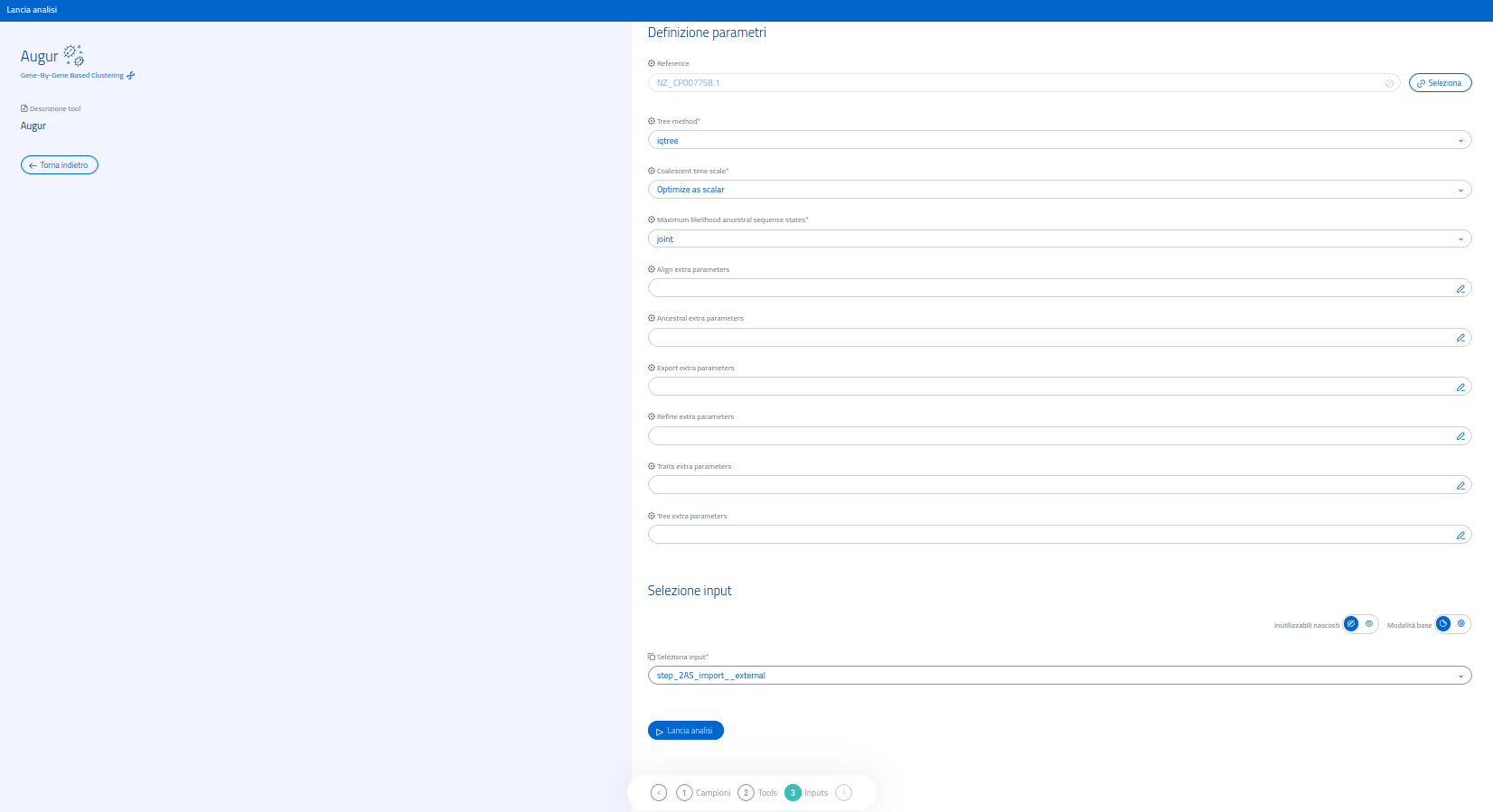
Once the Augur analysis has been selected in the dedicated run analysis page, the system will move to a confirmation interface: there is no need to choose the tool, since this analysis is specifically designed for the use of Augur.
The interface for input selection provides the advanced input selection mode, to allow the use of inputs processed by different methods, that were applied upstream in the analysis workflow.
The possible inputs that can be used for Augur include the results of all mapping analyses or de novo assembly.
In the parameter definition screen it is possible to:
- select the reference to be used as the tree root;
- choose the useful software to build the .nwk file (iqtree, fasttree or raxm);
- select a mode for the time scale;
- select a mode for the Maximum Likelihood algorithm in handling the ancestral sequence (reference);
- add additional parameters as text (the fields will recognize the parameters for launching the tool from the terminal. Please, refer to the Augur official guide Augur for the list of available parameters).
Once the analysis is launched, the page generates a link to the Check analysis section to allow a check of the processus status. The system will send the user a notification both when the analysis is successfully started and when the operation is completed.
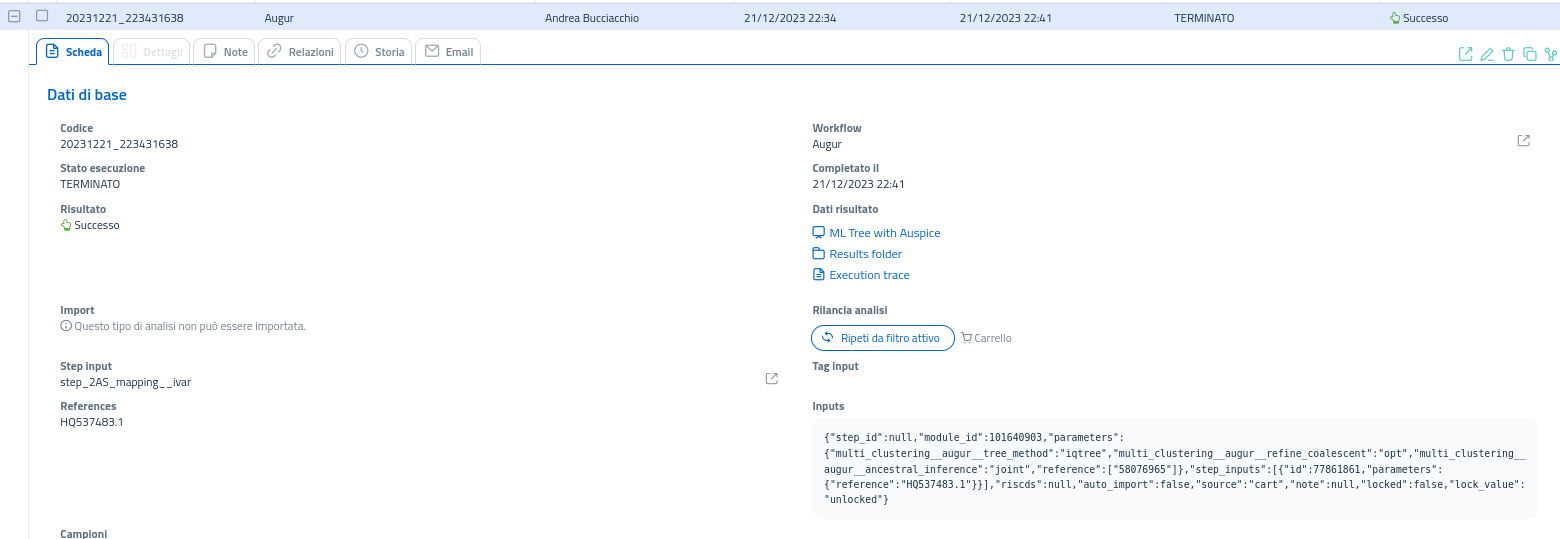
In the completed analysis card, in addition to the option to explore the output folder, several features will be available, such as direct access to selected log and metadata files, opening the .nwk file and the direct visualization of the Maximumm Likelihood tree through the integration, within the platform, of Auspice.
Visualizing the tree will require to navigate to the Grapetree result section and select the ML Tree with Auspice link:
Note: Multi-sample analysis results cannot be imported. Please, use the dedicated functionality for storing non-importable analyses or, alternatively, the option for directly downloading the newick (
.nwk) files and the metadata file, so that you can preserve the files and view the tree at any time, either within the platform or using an external software.
Result folder
To consult the guide on how to download files from the platform, please refer to the dedicated page.
The Result folder can be browsed by clicking the link available within the analysis card. Inside the subsequent Results folder, there are two subfolders:
- meta (metadata), where the log and configuration files of the executed process are saved;
- result, where the files containing the results produced by the analysis are saved.
The table below shows the list of the main files of interest present in the folders, along with some useful information.
| File | Description | Position |
|---|---|---|
| aa_muts.json | json file used by Auspice for amino acid mutations | folder: result |
| alignment.fasta | multi-alignment FASTA file | folder: result |
| augur_metadata.tsv | metadata table in .tsv format produced by Augur | folder: result |
| auspice.json | json file used by Auspice to map correspondences between dendrogram leaves and nodes on the map | folder: result |
| branch_lengths.json | folder: result | |
| nt_muts.json | json file used by Auspice for nucleotide sequence mutations | folder: result |
| traits.json | json file used by Auspice to populate the metadata fields | folder: result |
| tree.nwk | tree file in .nwk (newick) format, calculated using the Maximum Likelihood algorithm | folder: result |
| metadata.csv | metadata table in .csv format | folder: result |
The .nwk files contain all the tree data and can be viewed using Auspice or other external software for dendrogram visualization.