
Manage tags
This guide illustrates, through a series of video tutorials, the operations available for tags.
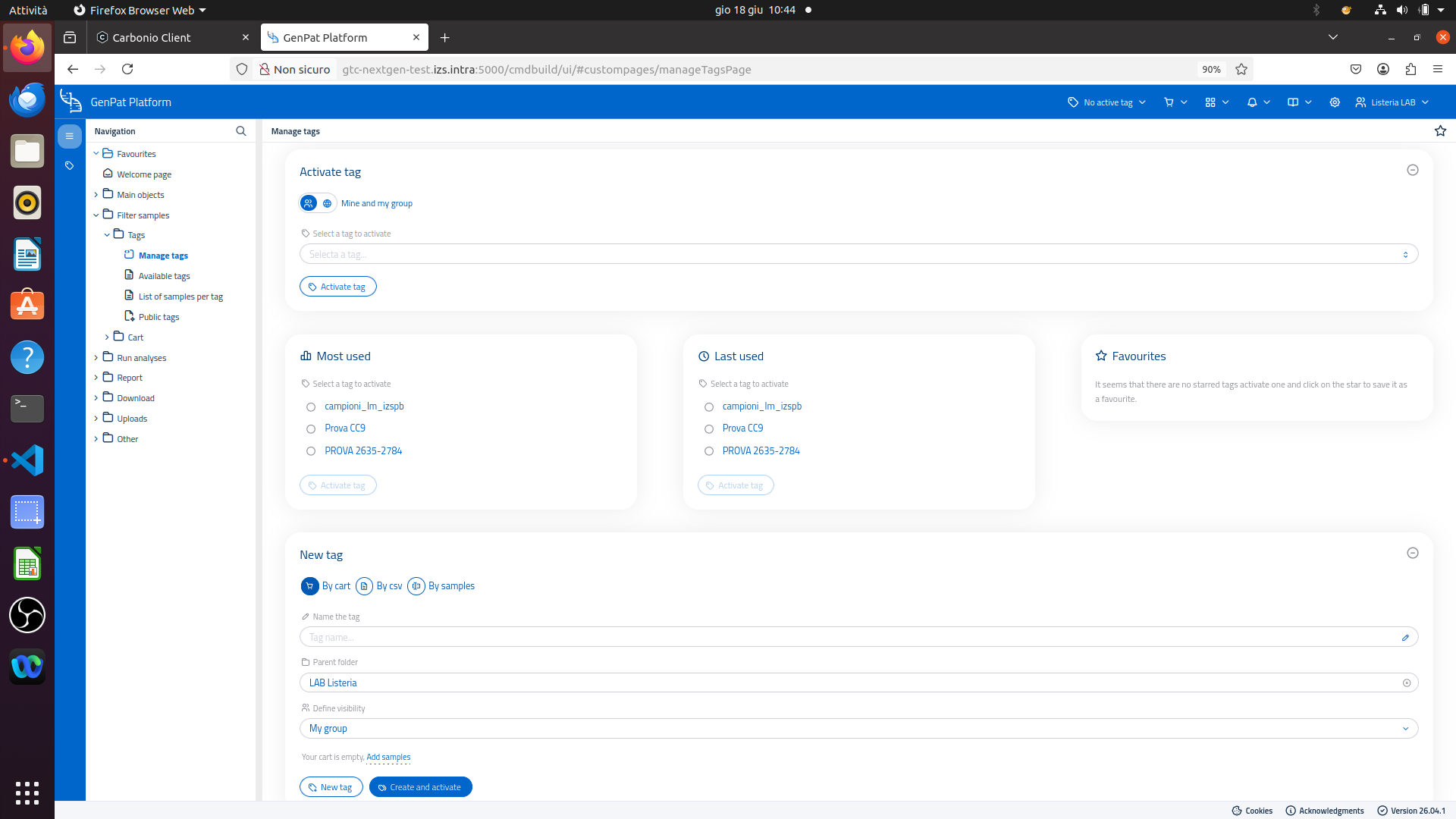
The Manage tags page can be accessed either from the side navigation menu by clicking on the Filter Samples section, or by selecting the Activate tag option from the dropdown menu that appears when clicking No active tag in the top bar. On this page, you can find information about the active tag (if any); you can also deactivate the current tag or activate an existing one.
The following video briefly shows the contents of the page: in the Manage tags section you will find 4 expandable elements ("cards"); each card is dedicated to one of the main operations available for tags: Activate tag, Create tag, Edit tag and Remove tag.
Activate tag
The first card provides access to tag activation: by clicking on "Select a tag to activate", it will be possible to choose and select a tag from those available, listed in a popup window. Once the tag is selected, it will be activated by clicking the "Activate tag" button.
Most used, Last used, Favorites
The Most used, Last used and Favorites cards allow you to quickly select tags to activate according to your preferences. The Most used and Last used cards are automatically populated with a list of 5 tags you use most and a list of the last 5 tags you activated, respectively.
The Favorites list, on the other hand, depends on direct user input and has no limit on the number of selectable tags. However, it’s worth remembering that adding too many would be like having none at all! The following video provides a brief demonstration of how to add and remove tags from the favorites list.
Create tag
The Create tag card offers 3 different ways to create a new tag: you can use a collection of samples from the cart, a CSV file, or sample codes (in the latter case, sample codes are written or pasted as a comma-separated list directly in the "Sample codes" field). Selecting one of the options will update the card, which will show the specific fields for the chosen option.
For all options and methods for creating a tag, the Visibility option is available. This feature allows you to specify whether you want to save the tag only for personal view and use, or make it available to the user's group as well.
Edit tag samples
The Edit tag card allows you to modify an existing tag by adding or removing samples: just like Create tag, here too you can choose between cart, CSV or list of codes. You can also modify the visibility of the selected tag and remove all its contents without deleting the tag.
Remove tag
The last card (Remove tag) is meant to allow deletion of a selected tag. As with the Activate tag section, clicking on the search field or the "Select tag" button (on the right) allows you to select the desired tag; to delete it, click the red "Remove tag" button.