
Check analyses
Launched analyses are listed on the Launched pipelines page, accessible from the Analyses section in the side navigation menu. Each analysis is associated with an expandable card which can be opened using the "+" button located to the left side of the analysis code.
Analysis card
The analysis card lists information about the executed run. If the process has successfully completed, you can access technical information about the process, the used inputs and the functions "Replay analysis" and "Import" of the results. Additionally, in the card you will also find a link to the Result folder, within the Result data section.
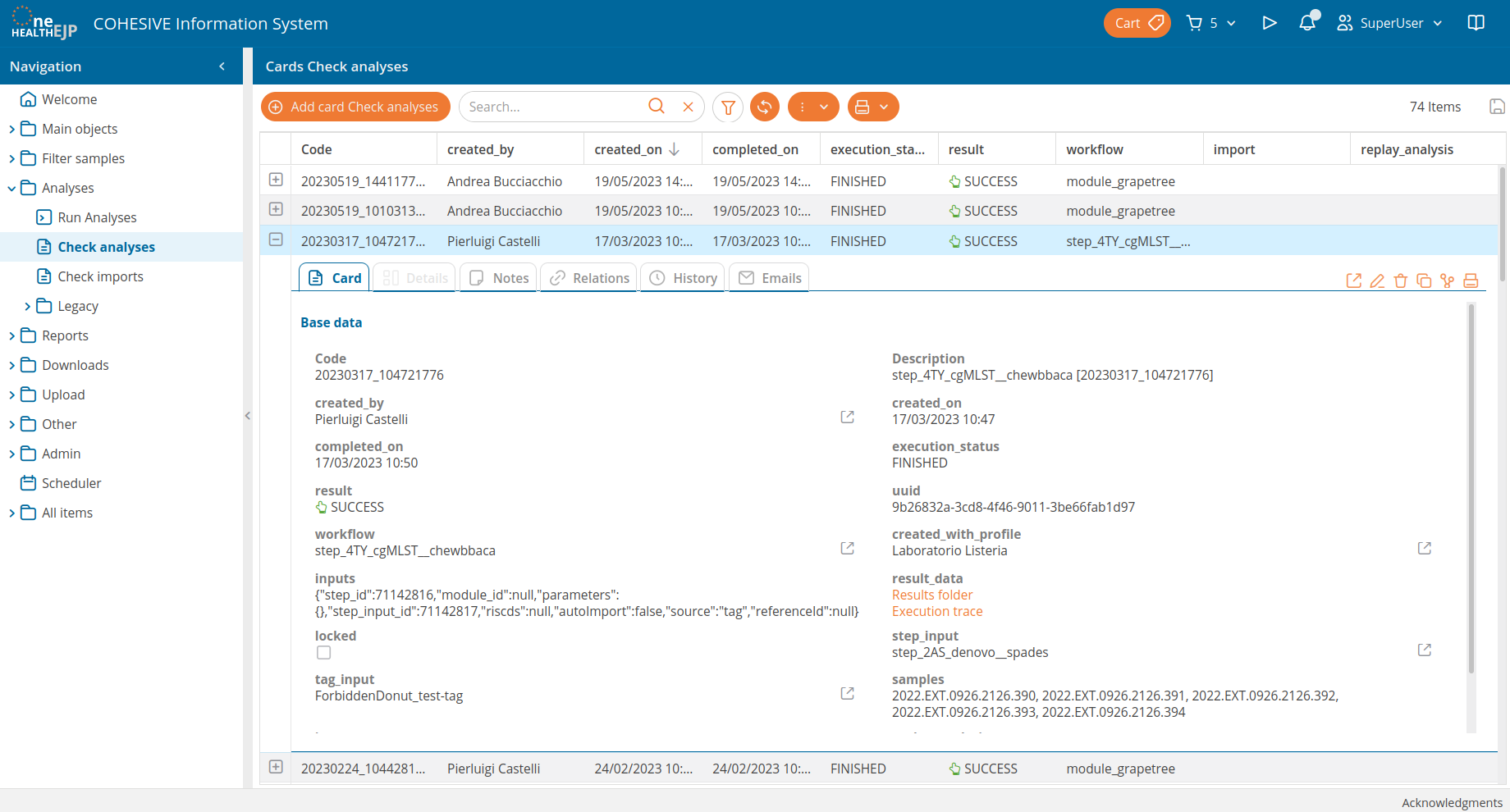
Result folder
An analysis results can be viewed through a system that allows you to browse and search the generated files, without leaving the platform. Some download tools are available to allow you multiple selection and search, as well as the option to download either a single generated file or a folder containing multiple files. The following video briefly shows the various operations made available by these functions.
Note The maximum size for downloading multiple files, through All, Search and Selected options, is currently 20GB. The size indicator, inside the button, turns red when allowed limit is exceeded. The download of a single resource, however, has no limit.
Import of analyses
Once an analysis has been successfully completed, the generated files are stored in a temporary folder, where they will remain for 45 days. During this period, users will be able to access the results folder, as previously mentioned, from the Result data section of the analysis card; alternatively, the results can be downloaded using the download function of the platform that allows manual download and provides the wget command useful for the downloading from the terminal.
After 45 days, the temporary folder will be removed from the servers. To ensure that the analysis results are saved permanently, they must be imported.
In most cases, launching an analysis that needs, as input, the files produced by another analysis, requires that these files have been previously imported.
To import results, simply click the Import button, located at the botton left of the analysis card, as briefly shown in the video below. The system will notify the user once the import is complete.
Please, be aware that certain analyses may not be eligible for import.
The list and progress of imports are available on the View imports page, in the Analyses section, of the side navigation menu.
Replay analysis
At the bottom of a completed analysis card, it is possible to access the Replay analysis option. This feature allows you to repeat analyses that have already been successfully performed, maintaining the same previous parameters and options. The new set of samples can be provided with the active cart or a active tag.
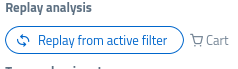
The following video shows how to replay an analysis.
Note: For privacy and data security reasons, the video was created using the Cohesive demo application; therefore, the interface may show some minor differences.
Keep analysis
Within the analysis card, there's the Keep analysis option, which allows you to choose whether to retain indefinitely a non-importable analysis, preventing its related data from being removed from the system once the 45-day time limit has expired.